ARM Help

Detailed Sales Report for Tire

The Detailed Sales Report for Tire (its heading reads Tire Detailed Sales Report) lists every tire sold on a finalized invoice in the date range, one line for the tires themselves and one line for each labor item of the tire service, with what the tires cost you, whether they came from your inventory or were bought outside for the job, and what the customer paid for the tires and for the labor. ARM knows which services are tire services because each master service package carries a Static ARM Service Type in System Setup Tools → Add/Edit Master Service Package; every package set to Tire is included here. Use it to see how many tires you sold, what margin you made on them, how much mounting, balancing and disposal labor they brought in, and how often a tire had to be bought from an outside supplier instead of stock.

4 how-to answers 1 screenshot Open in ARM Markdown

How do I run the Detailed Sales Report for Tire? #

  1. From the Home Screen, click Reports → Sales & Financial Reports → Detailed Sales Report for Tire.
  2. Click the From : … To : … date box and pick the first and last day. The report opens on the first day of the current month through today, and it selects invoices by their finalized date. The × beside the box clears the dates.
  3. Click Search to load the report, or Show All to reload it for the same dates.
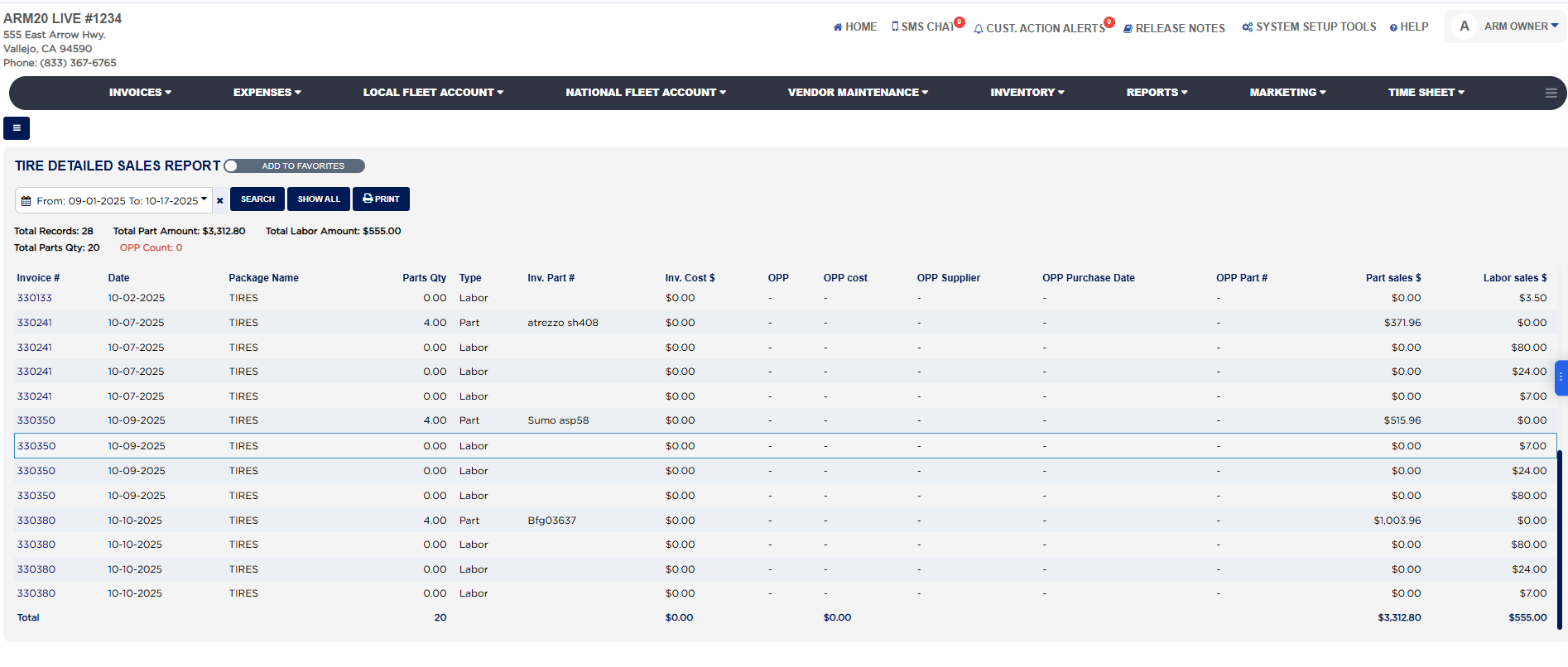
  4. Read the summary above the table: Total Records is the number of lines listed, Total Part Amount and Total Labor Amount are the tire sales and the tire labor sales for the range, Total Parts Qty is the number of tires sold, and OPP Count, in red, is how many tire lines were outside part purchases rather than stock.
  5. Click Print to open a PDF copy of the report in a new tab.

How do I open an invoice from the Detailed Sales Report for Tire? #

  1. From the Home Screen, click Reports → Sales & Financial Reports → Detailed Sales Report for Tire, and run it for your date range.
  2. Click the blue Invoice # at the start of the line. The invoice opens so you can see the whole ticket the tires were sold on.
  3. Use the browser back button to return to the report.

How do I see which tires were bought outside instead of from stock? #

  1. From the Home Screen, click Reports → Sales & Financial Reports → Detailed Sales Report for Tire, and run it for your date range.
  2. Check OPP Count in the red summary line for the number of outside purchases.
  3. Find the lines marked in the OPP column: OPP cost, OPP Supplier, OPP Purchase Date and OPP Part # tell you what was paid, to whom, when and for which tire, and Part sales $ on the same line shows what the customer was charged for it.

How do I check the margin made on tires for a period? #

  1. From the Home Screen, click Reports → Sales & Financial Reports → Detailed Sales Report for Tire.
  2. Set the From : … To : … box to the period and click Search.
  3. In the Total row, take Part sales $ and subtract Inv. Cost $ and OPP cost; the result is the profit on the tires themselves. Labor sales $ in the same row is the mounting, balancing and other labor earned fitting them.
  4. If Inv. Cost $ shows $0.00 for tires you know you paid for, enter the purchase cost on those parts in Inventory so the margin is calculated.
  5. Click Print to keep a PDF copy.
Detailed Sales Report for Tire with filters, results and Total row
About this screen

Each line shows the Invoice # (a link that opens the invoice), the Date the invoice was finalized, the Package Name of the tire service, the Parts Qty sold on that line, and the Type, which is Part for the tires and Labor for each labor item on the same service. A set of tires therefore appears as one Part line with a quantity of 4 followed by several Labor lines with the same invoice number, one for each labor charge such as mounting, balancing or disposal, each with its own Labor sales $. Inv. Part # is the part number of the tire taken from your inventory. Inv. Cost $ is what the tires cost you: the purchase cost recorded on the part in inventory multiplied by the quantity sold, so it shows $0.00 when no purchase cost is recorded on the tire in inventory; when part of the quantity was bought outside for the job, the outside purchase cost is used for that portion and the inventory cost for the rest. OPP marks a line whose tires were an outside part purchase, and for those lines the cost moves from Inv. Cost $ to OPP cost, with the OPP Supplier, OPP Purchase Date and OPP Part # taken from the expense entry recorded when the tires were bought; stock lines show a dash in all five OPP columns. Part sales $ is the amount charged to the customer for the tires and Labor sales $ is the labor charged after any labor discount; a Part line carries the part sale and a Labor line carries the labor sale, the other being $0.00. The Total row at the foot sums Parts Qty, Inv. Cost $, OPP cost, Part sales $ and Labor sales $ for every line in the range. Your margin on tires for the period is Part sales $ less Inv. Cost $ less OPP cost from that row, and Labor sales $ is the labor earned on top.

The Detailed Sales Report for Battery in the same section has the same layout for battery services. The Add To Favorites switch beside the heading saves the report under Favorites on the Reports page. Which reports you see depends on your admin group permissions.
Ask AI