ARM Help

Shop Paid Outs By Account Category

Shop Paid Outs By Account Category adds up the shop's paid outs and running expenses for a period, one line per expense account, with the amount spent on each. It is the summary of Shop Paid Outs Expense Report: the same payments, totalled by account instead of listed one by one. Use it to see where the shop's overhead money goes, to compare one account's spend between periods, and to give your bookkeeper totals by account.

2 how-to answers 3 screenshots Open in ARM Markdown

How do I run the Shop Paid Outs By Account Category report? #

  1. From the Home Screen, click Reports → Shop Expenses & Vendor Reports → Shop Paid Outs By Account Category.
  2. Set the date range in the From / To selector. It opens on the first of this month to today.
  3. To see one account, start typing its name in Account Name and pick it from the list, or choose it in Select Account. Leave both empty for every account.
  4. Click SEARCH to load the report. SHOW ALL clears the account and reloads.
  5. Click the ACCOUNT or AMOUNT heading to sort by it, for example by AMOUNT to put the biggest spend at the top.
  6. Click PRINT for a PDF copy or DOWNLOAD to export to a spreadsheet.
Shop Paid Outs By Account Category filters
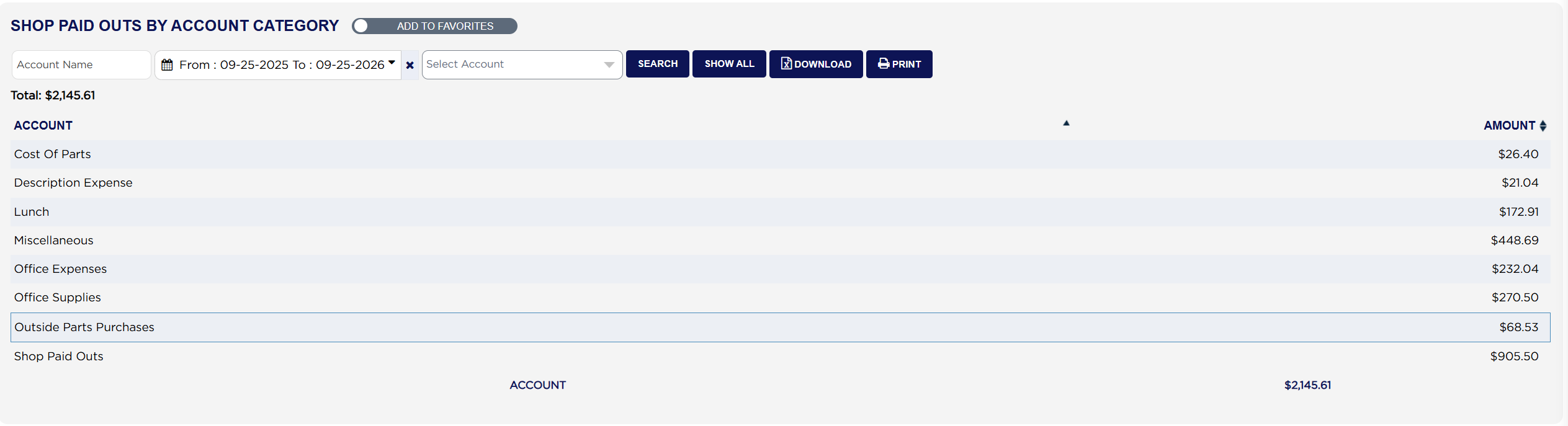
Shop Paid Outs By Account Category list and total
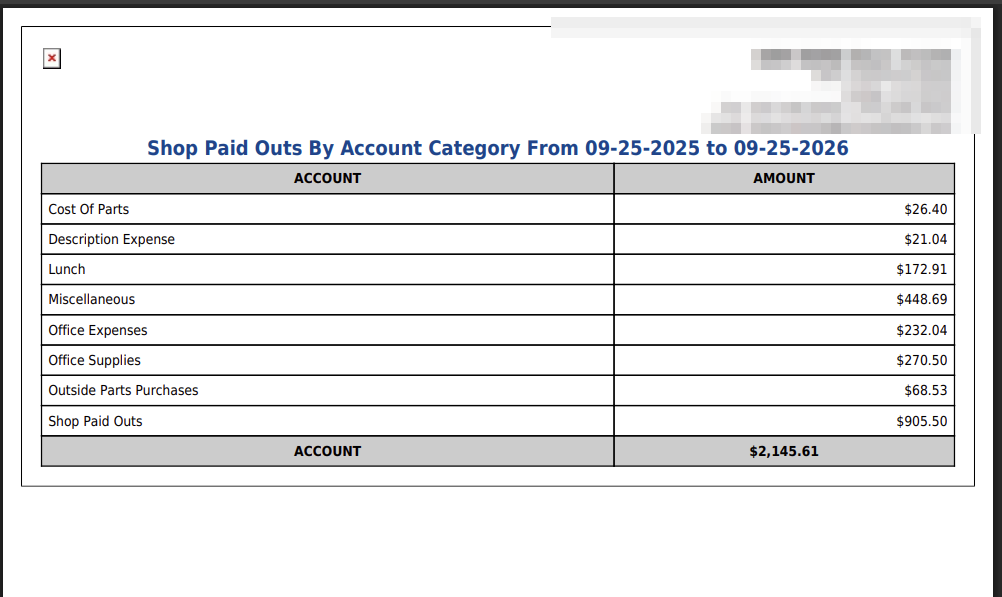
Shop Paid Outs By Account Category printout

How do I check the total by account? #

  1. From the Home Screen, click Reports → Shop Expenses & Vendor Reports → Shop Paid Outs By Account Category, and run it for your date range. Example: 09-25-2025 to 09-25-2026.
  2. Add up the AMOUNT column. Example: Cost Of Parts $26.40 + Description Expense $21.04 + Lunch $172.91 + Miscellaneous $448.69 + Office Expenses $232.04 + Office Supplies $270.50 + Outside Parts Purchases $68.53 + Shop Paid Outs $905.50 = $2,145.61.
  3. That is the Total: above the table and the figure in the foot row: $2,145.61.
  4. To see the payments behind one account's figure, run Shop Paid Outs Expense Report for the same dates with that account chosen in Select Account.
About this screen

Total: above the table is the amount spent across every account listed. Each line shows the ACCOUNT and the AMOUNT paid out against it in the period. The row at the foot repeats the total. Accounts with nothing spent in the period do not appear.

The foot row totals the lines on the page you are looking at. A summary by account is usually short enough to fit on one page, so the two totals normally agree. If the report ever runs to a second page, use the Total: above the table.

The printout is headed Shop Paid Outs By Account Category From with your dates, and lists the same accounts and amounts with the total at the foot.

To list the individual payments, with supplier, payment type and description, run Shop Paid Outs Expense Report.

Ask AI